Installation & Setup
2 min read
Download QuickSnip
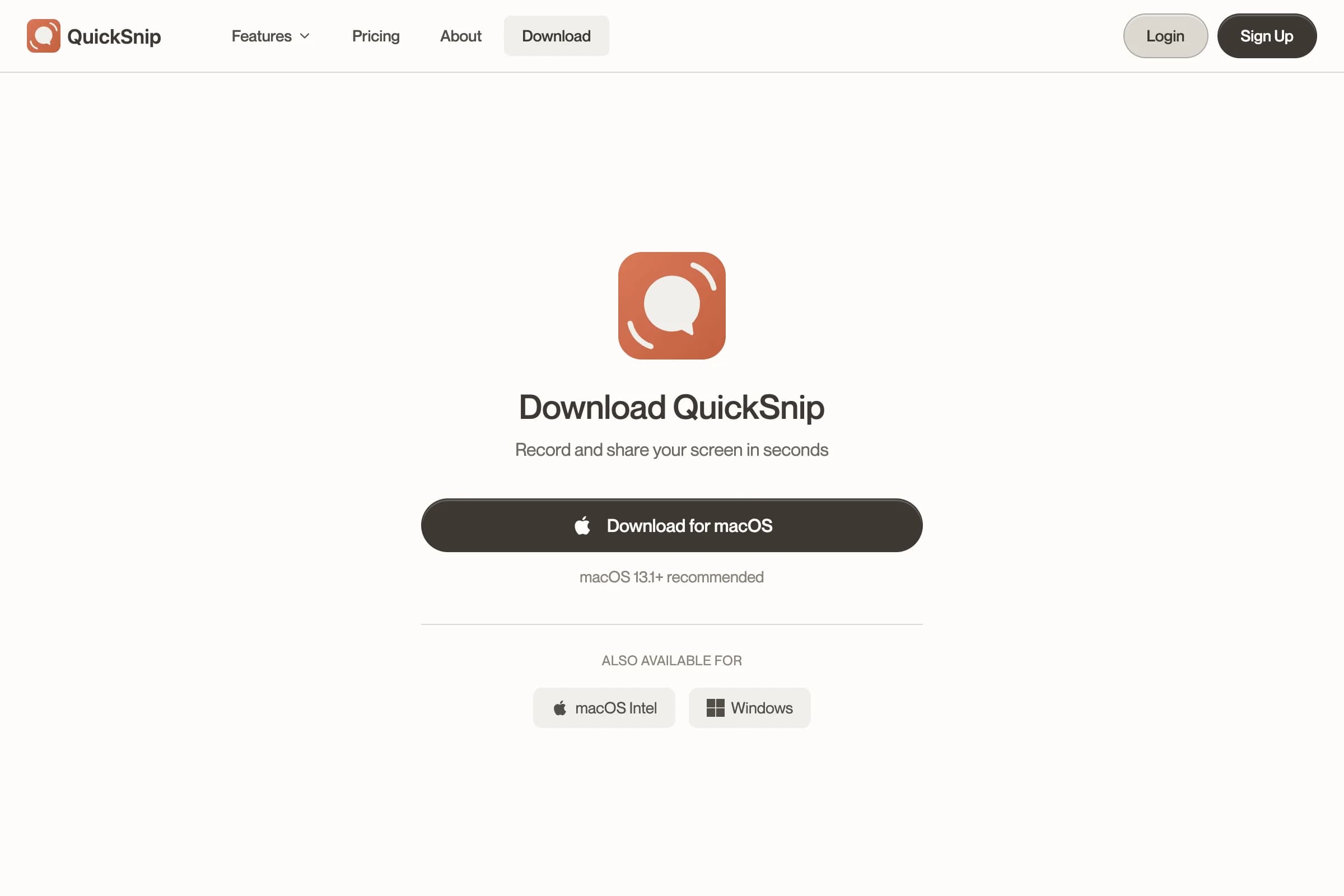
Head to the QuickSnip download page and grab the installer for your platform:
- macOS — Available for both Apple Silicon (M1/M2/M3/M4) and Intel processors
- Windows — Available for Windows 10 and later (64-bit)
Install on macOS
- Open the downloaded
.dmgfile - Drag QuickSnip into your Applications folder
- Launch QuickSnip from Applications or Spotlight
When you first open QuickSnip, macOS will ask you to confirm since it was downloaded from the internet. Click Open to proceed.
Install on Windows
- Run the downloaded
.exeinstaller - Follow the installation wizard prompts
- Launch QuickSnip from the Start menu or desktop shortcut
Grant Permissions (macOS)
macOS requires explicit permission for screen recording, microphone, and camera access. QuickSnip will walk you through this on first launch, but you can also set them up manually.
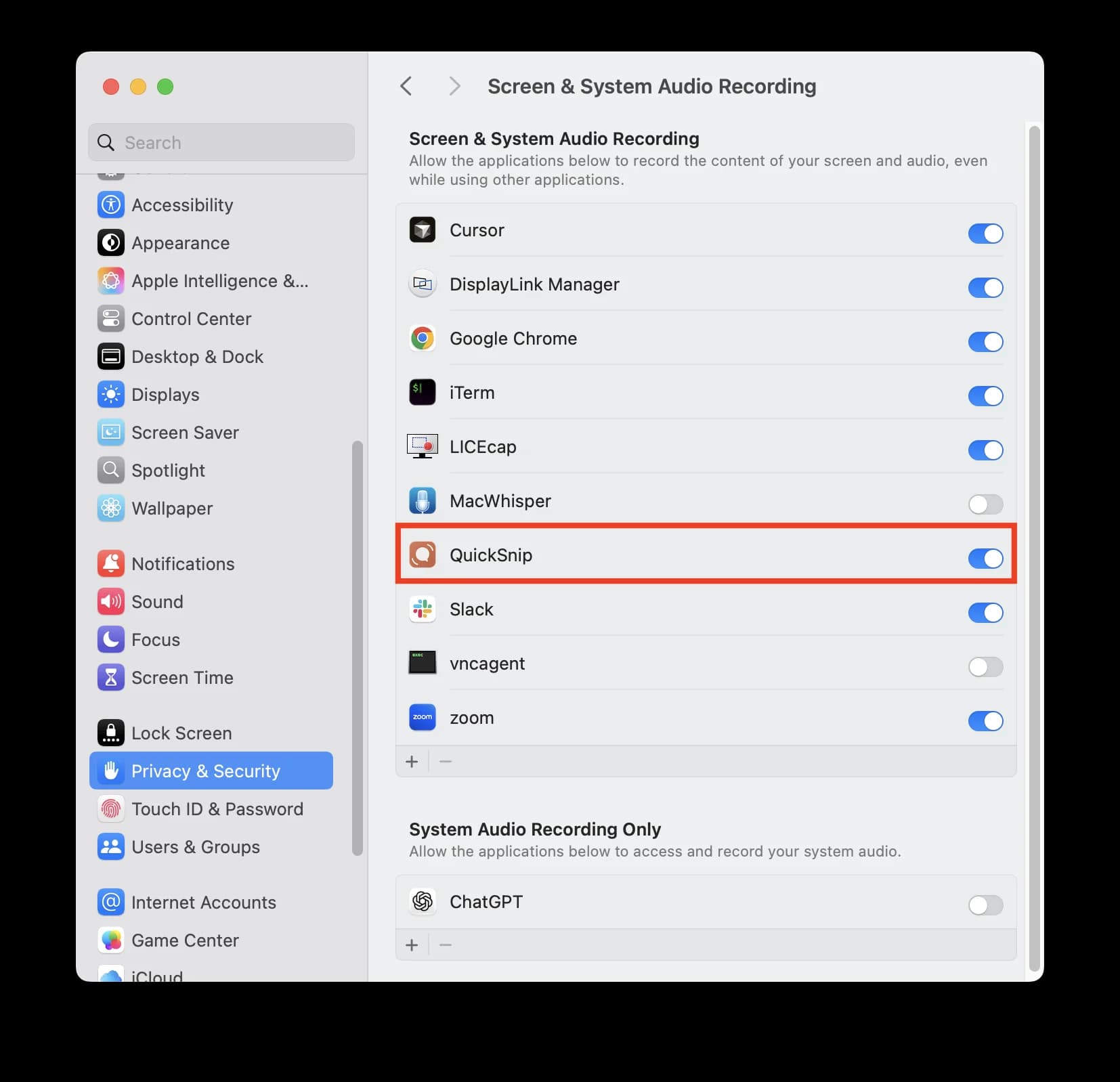
Screen Recording
This is required for QuickSnip to capture your screen.
- Open System Settings → Privacy & Security → Screen Recording
- Toggle QuickSnip on
- You may need to quit and relaunch QuickSnip for the change to take effect
Microphone
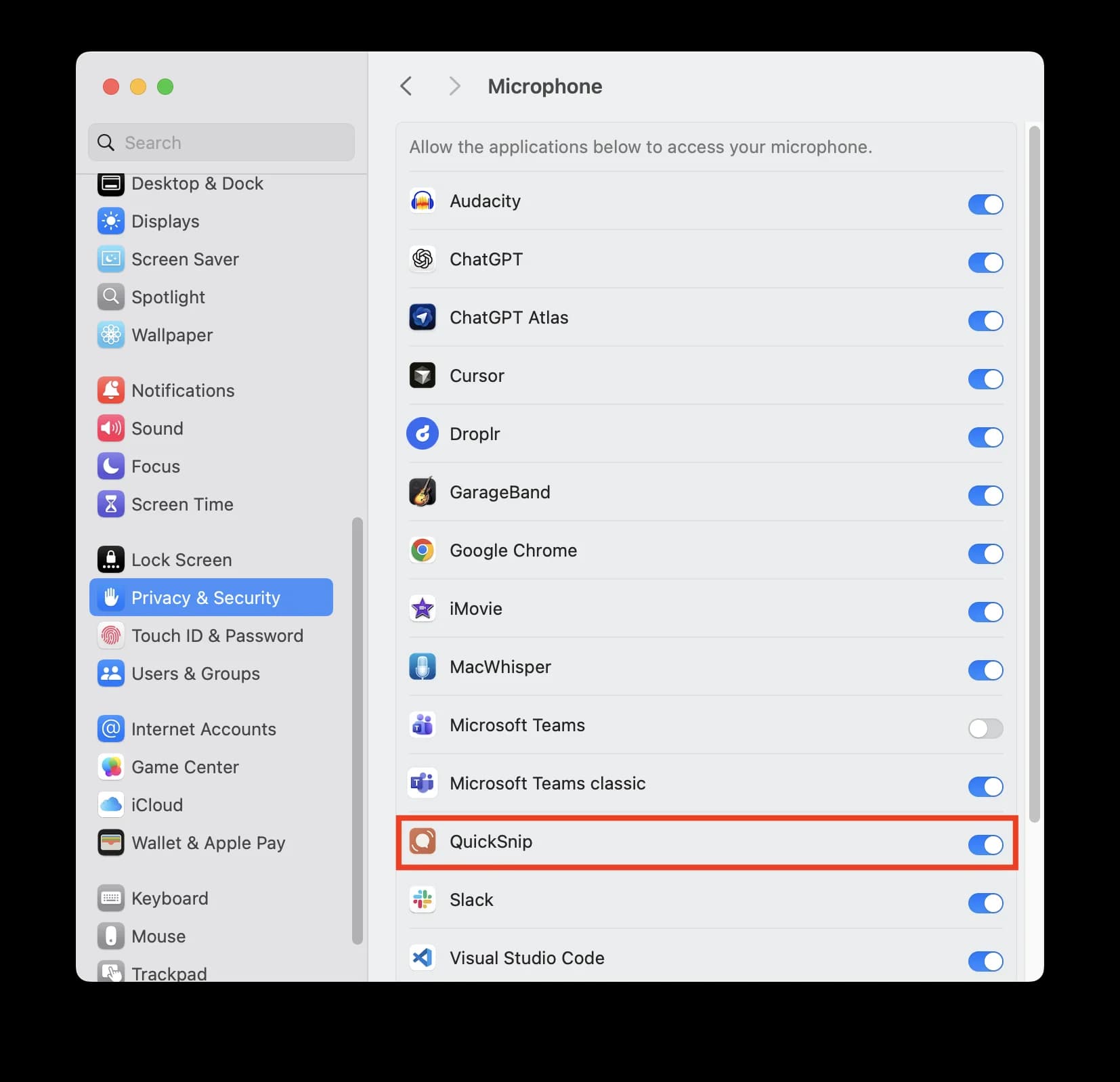
Required if you want to record voiceover or narration.
- Open System Settings → Privacy & Security → Microphone
- Toggle QuickSnip on
Camera (Optional)
Only needed if you want to use the webcam overlay in your recordings.
- Open System Settings → Privacy & Security → Camera
- Toggle QuickSnip on
Tip
If QuickSnip doesn't appear in a permission list, try launching it once first. macOS only shows apps that have requested access.
Verify Installation
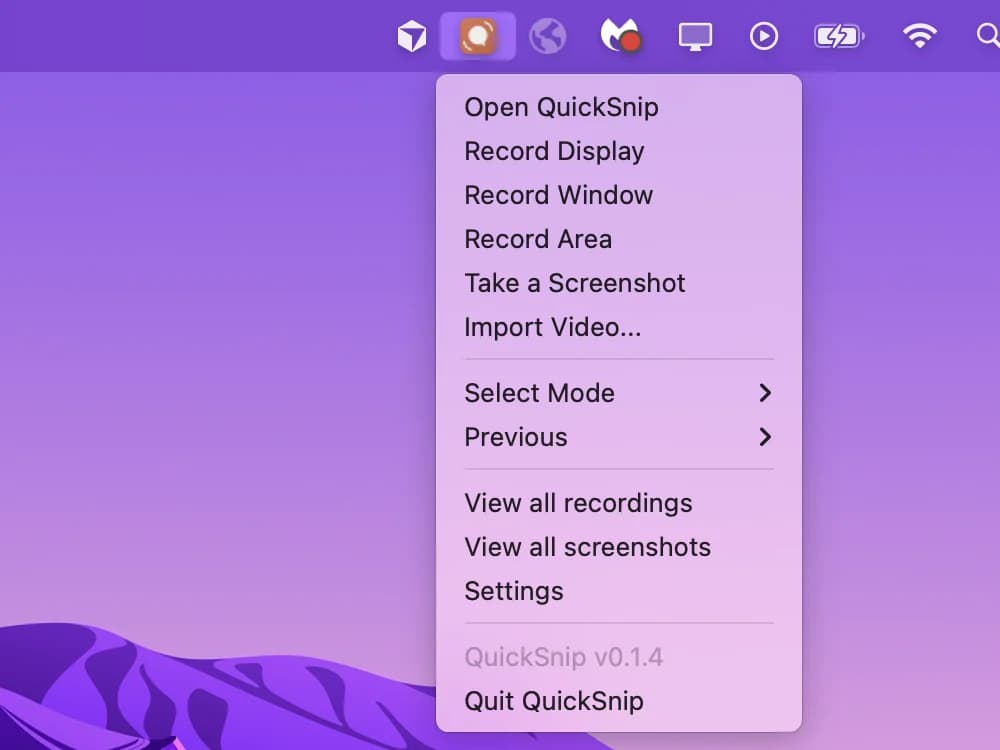
After granting permissions, you should see the QuickSnip icon in your menu bar (macOS) or system tray (Windows). Click it to open the recording panel.
You're all set! Head to Your First Recording to make your first snip.
Can't Find What You Need?
Reach out to our support team and we'll get back to you within 24 hours.