DocsGetting Started
Sharing Basics
1 min read
How Sharing Works
Every QuickSnip recording gets a unique share link. When someone opens it, they see your video in a clean, branded player — no account or download required.
Copy Your Share Link
After recording, QuickSnip automatically copies the share link to your clipboard. You can also find it by:
- Opening the QuickSnip Dashboard
- Finding your recording in the list
- Hovering over the recording and clicking the share link
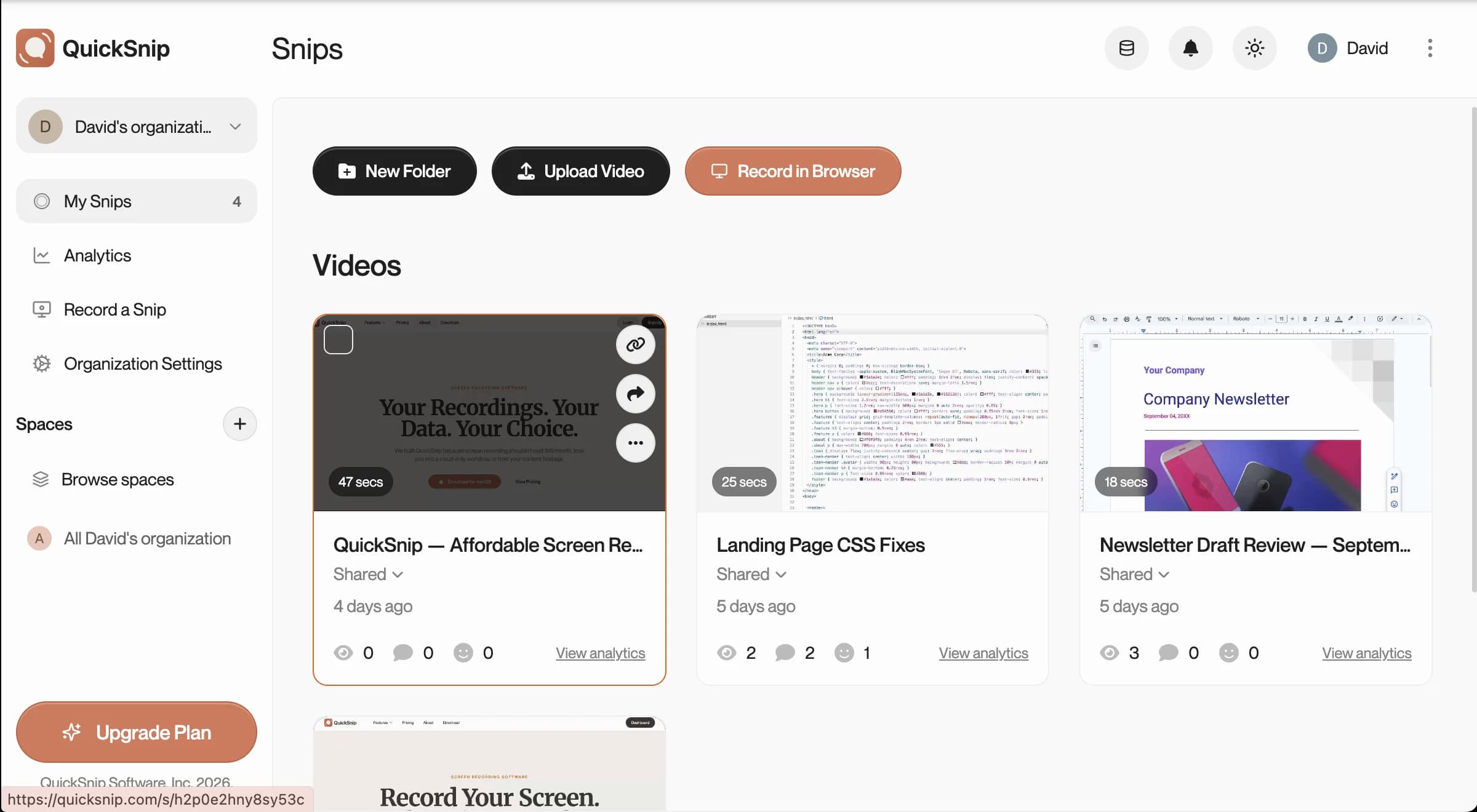
Paste the link anywhere — Slack, email, a project management tool, or a support ticket.
The Share Page
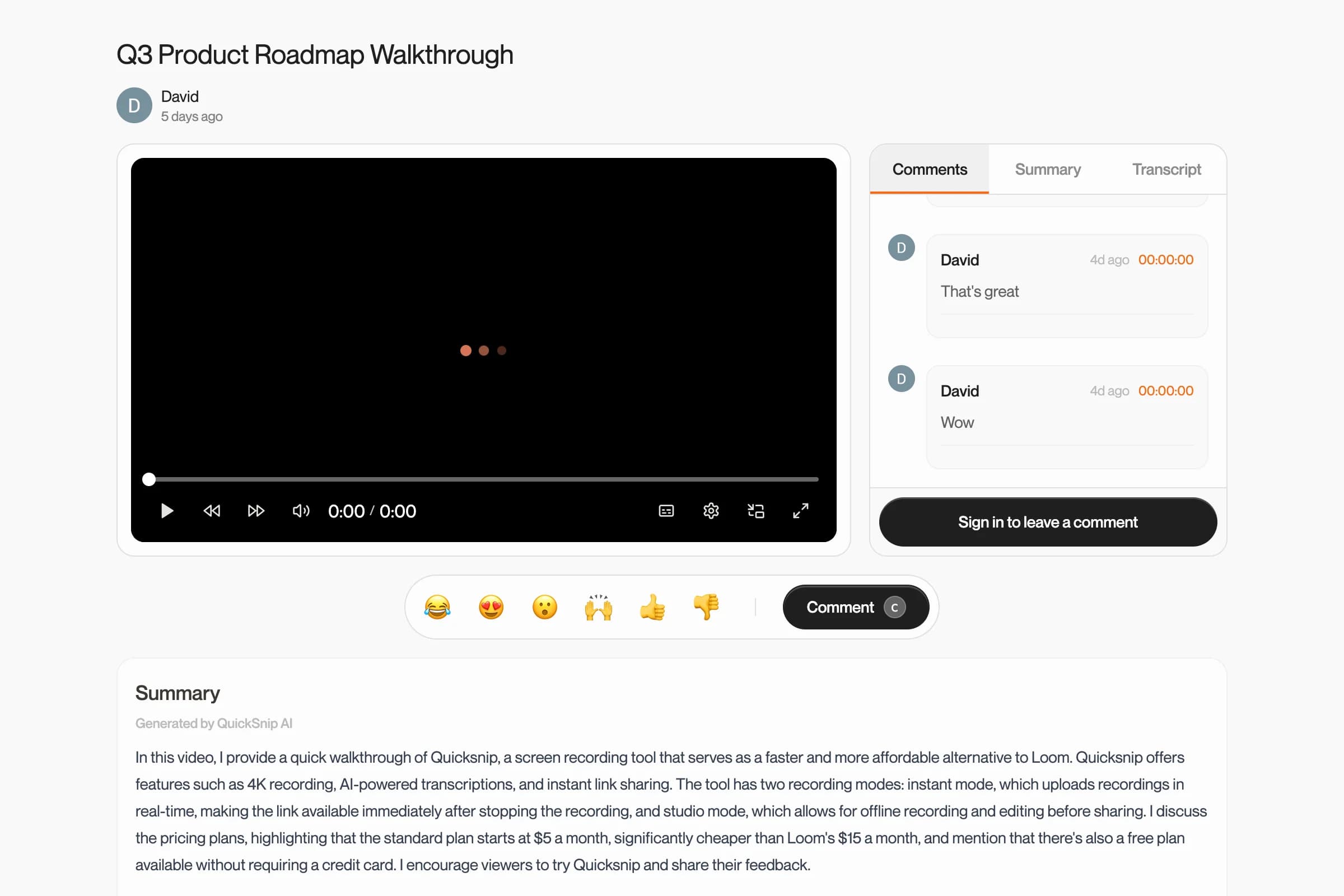
When someone opens your share link, they'll see:
- Video Player — Full playback with speed controls, captions, and picture-in-picture
- Comments — Viewers can leave timestamped comments and emoji reactions
- Summary — AI-generated summary and chapter markers
- Transcript — Full AI-generated transcript (if captions are enabled)
Manage Your Recordings
All your recordings are available in the QuickSnip Dashboard. From there you can:
- Rename recordings for easy organization
- Delete recordings you no longer need
- View analytics to see who watched and for how long
- Organize recordings into spaces
Note
Share links stay active as long as the recording exists in your account. Deleting a recording will deactivate its share link.
What's Next
- Recording Modes — Choose between Quick and Studio mode
- AI Captions — Add AI-generated captions to your recordings
- Plans & Billing — See what's included in each plan
Can't Find What You Need?
Reach out to our support team and we'll get back to you within 24 hours.