Audio Settings
2 min read
Microphone Selection
QuickSnip detects all available microphones on your system. To choose which one to use:
- Open the recording panel
- Click the microphone dropdown
- Select your preferred microphone
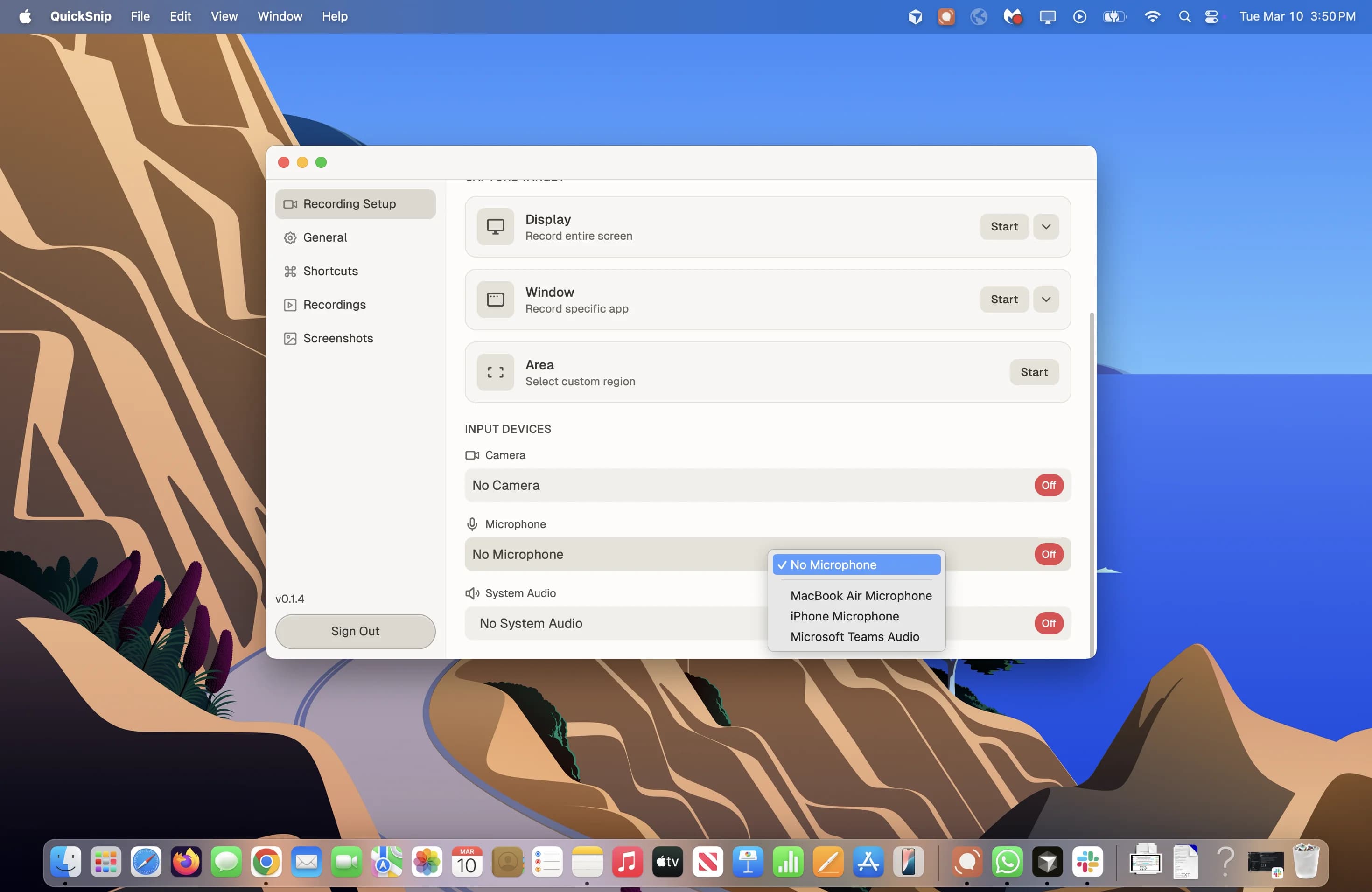
If you don't want to record voiceover, select No Microphone to disable mic input entirely.
Tip
For the best audio quality, use an external microphone or headset rather than your laptop's built-in mic. This reduces background noise and echo.
System Audio
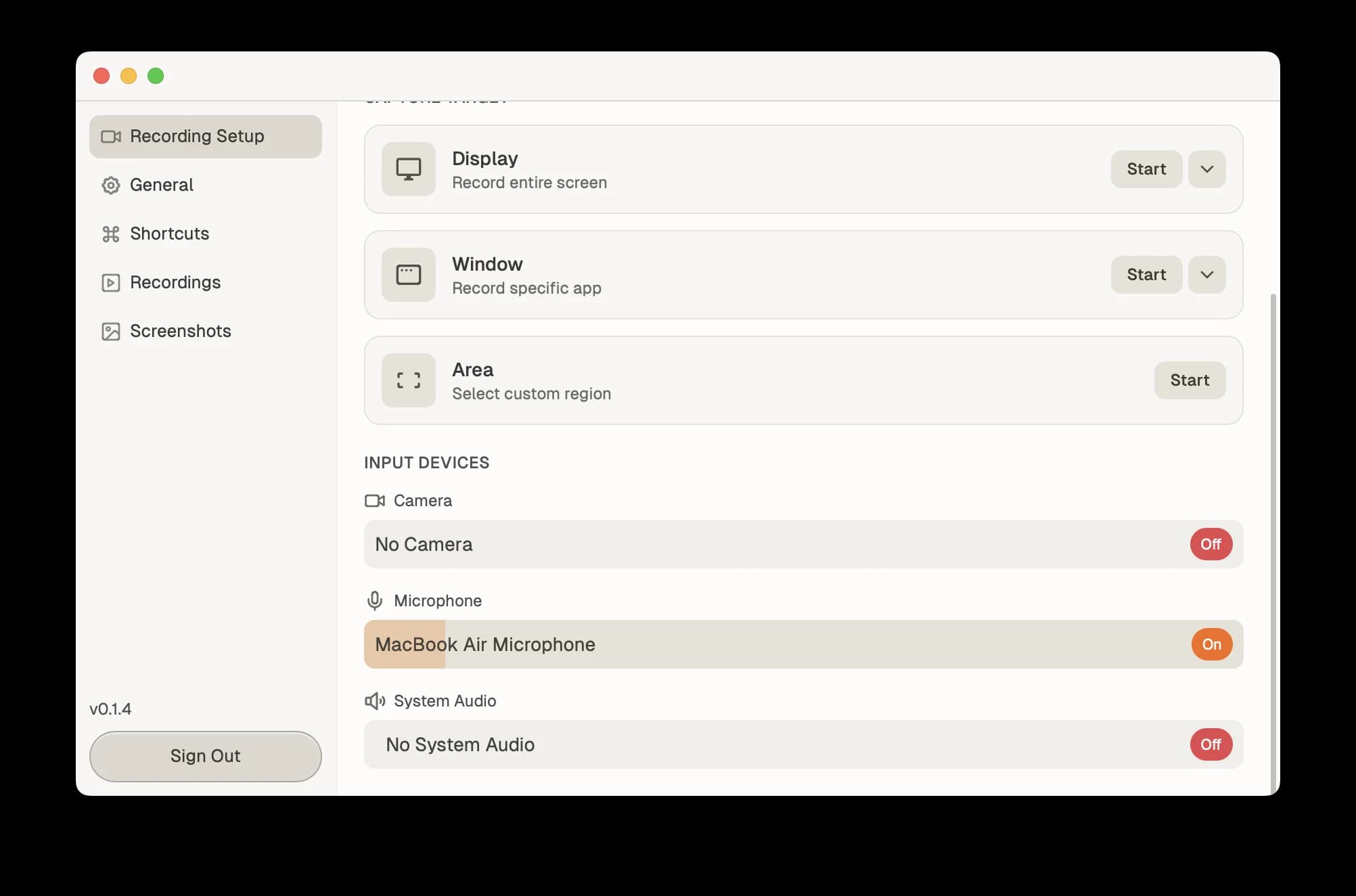
System audio captures the sounds coming from your computer — app sounds, music, notification sounds, and anything else playing through your speakers.
Toggle system audio on or off from the recording panel.
When to enable system audio:
- Demonstrating an app with sound effects
- Recording a video call (you'll capture both sides of the conversation)
- Walking through a presentation with embedded audio
When to disable system audio:
- Recording a silent walkthrough with voiceover only
- Avoiding notification sounds in your recording
- Working in a noisy environment with audio playing
Audio Levels
While recording, QuickSnip shows a visual indicator of your audio input levels.
If you notice the levels are too low or too high:
- Too low — Move closer to your microphone, or increase input volume in System Settings
- Too high / clipping — Move further from the mic, or reduce input volume
Troubleshooting Audio
No microphone appearing in the dropdown?
- Make sure you've granted microphone permission (macOS)
- Check that your microphone is plugged in and recognized by your OS
- Try quitting and relaunching QuickSnip
System audio not working?
- System audio capture requires macOS 13 (Ventura) or later
- On Windows, system audio is captured by default
Note
Audio settings are saved between sessions. You don't need to reconfigure them each time you record.
What's Next
- Recording Modes — Choose between Quick and Studio mode
- AI Captions — Generate captions from your audio
- macOS Permissions — Fix permission issues
Can't Find What You Need?
Reach out to our support team and we'll get back to you within 24 hours.