AI Captions
3 min read
Overview
QuickSnip offers two types of AI-powered captions:
- Studio captions — Generated locally on your machine using Whisper AI models. Available in the studio editor after recording in Studio mode. This article covers studio captions.
- Quick captions — Generated automatically in the cloud after uploading a recording in Quick mode. These use DeepGram for fast cloud-based transcription.
Generate Captions
Captions are available in Studio mode. After recording:
- Open the studio editor
- Navigate to the Captions tab
- Select your preferred transcription model
- If this is your first time, click Download to download the model (one-time step)
- Choose the language (defaults to Auto Detect)
- Click Generate Captions
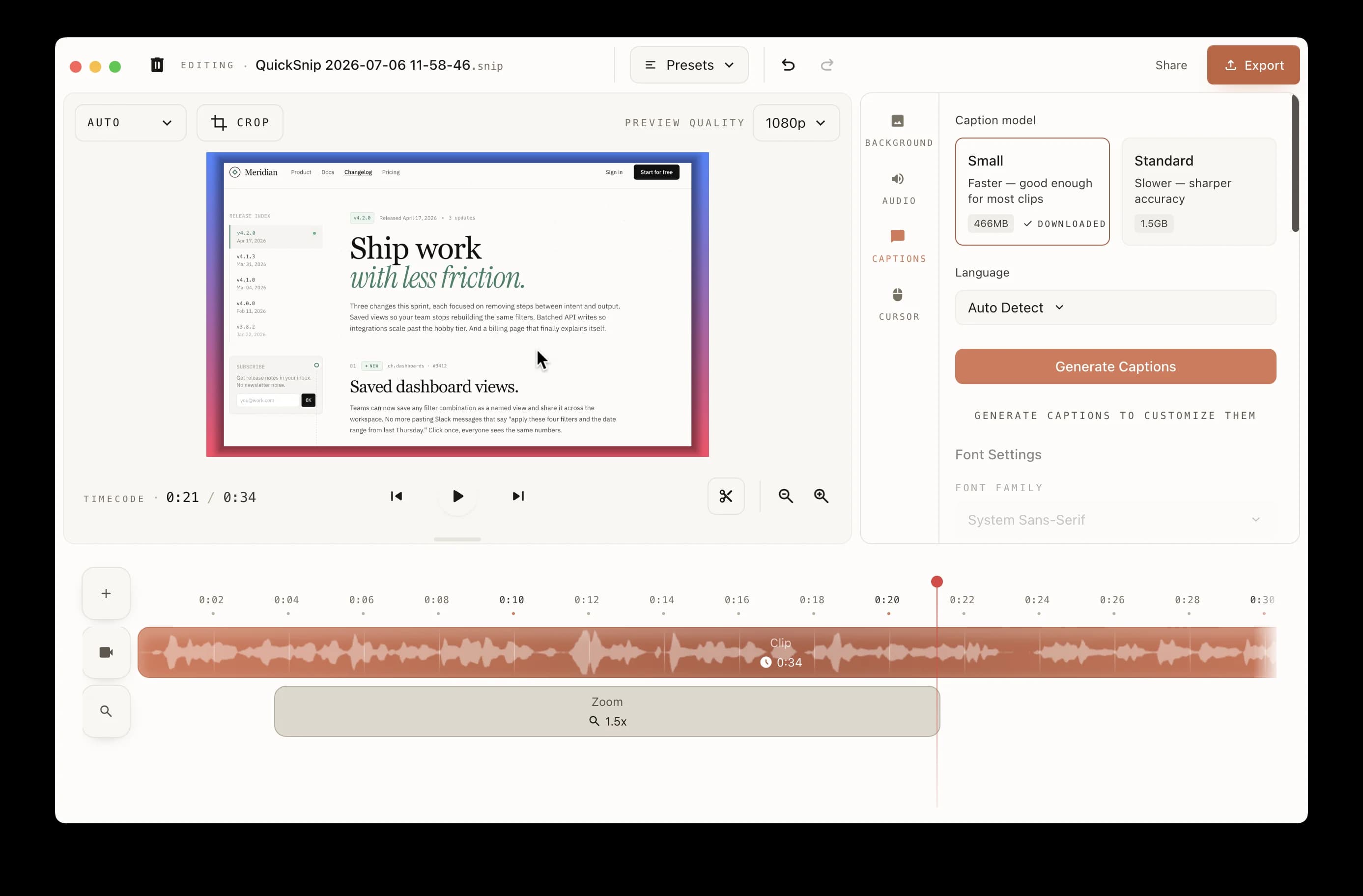
Generation typically takes 10–30 seconds depending on the length of your recording. If you've already generated captions, the button changes to Regenerate Captions.
Choose a Model
QuickSnip offers two local Whisper models with different speed and accuracy trade-offs:
| Model | Size | Speed | Accuracy | Best For |
|---|---|---|---|---|
| Small | 466 MB | Faster | Good | Quick recordings, clear audio |
| Standard | 1.5 GB | Moderate | Better | Technical terms, accented speech |
Tip
Start with the Small model for everyday recordings. Switch to Standard if you need higher accuracy with technical terminology or accented speech.
Models are downloaded once and stored locally. You can use them offline after the initial download.
Preview Captions
After generation, captions appear overlaid on your video preview in real time. Play through your recording to verify accuracy.
Edit Captions
If the AI gets a word wrong, you can manually edit captions in the Caption Segments list below the video preview:
- Find the segment you want to edit in the list
- Edit the caption text in the text field
- Adjust the start and end times if needed
- Click Add at Current Time to insert a new caption segment at the current playback position
- Delete any unwanted segments with the delete button
This is especially useful for product names, brand terms, or technical jargon that the AI might not recognize.
Caption Styling
Customize how captions appear on your video:
- Position — 6 placement options: top-left, top-center, top-right, bottom-left, bottom-center, bottom-right
- Font size — Slider from 12px to 100px
- Font family — Sans-serif, serif, or monospace
- Font weight — Normal, medium, or bold
- Font color — Full color picker with hex input
- Background color — Color picker for the caption background
- Background opacity — Slider from 0–100%
- Active word highlight — Toggle to highlight the currently spoken word
- Highlight color — Color picker for the active word highlight
Language Support
QuickSnip supports transcription in the following languages. Select your language from the dropdown before generating captions — the default is Auto Detect.
- Auto Detect
- English
- Spanish
- French
- German
- Italian
- Portuguese
- Dutch
- Polish
- Russian
- Turkish
- Japanese
- Korean
- Chinese
Note
AI captions require audio in your recording. Make sure you have microphone or system audio enabled when recording. See Audio Settings for setup help.
What's Next
- Audio Settings — Make sure your audio is set up correctly
- Recording Modes — Use Studio mode for caption support
- Sharing Basics — Share your captioned recording
Can't Find What You Need?
Reach out to our support team and we'll get back to you within 24 hours.