macOS Permissions
2 min read
Why Permissions Matter
macOS requires apps to request permission before accessing your screen, microphone, or camera. If QuickSnip can't record, it's almost always a permissions issue.
Screen Recording Permission
This is the most important permission. Without it, QuickSnip cannot capture your screen.
Grant Permission
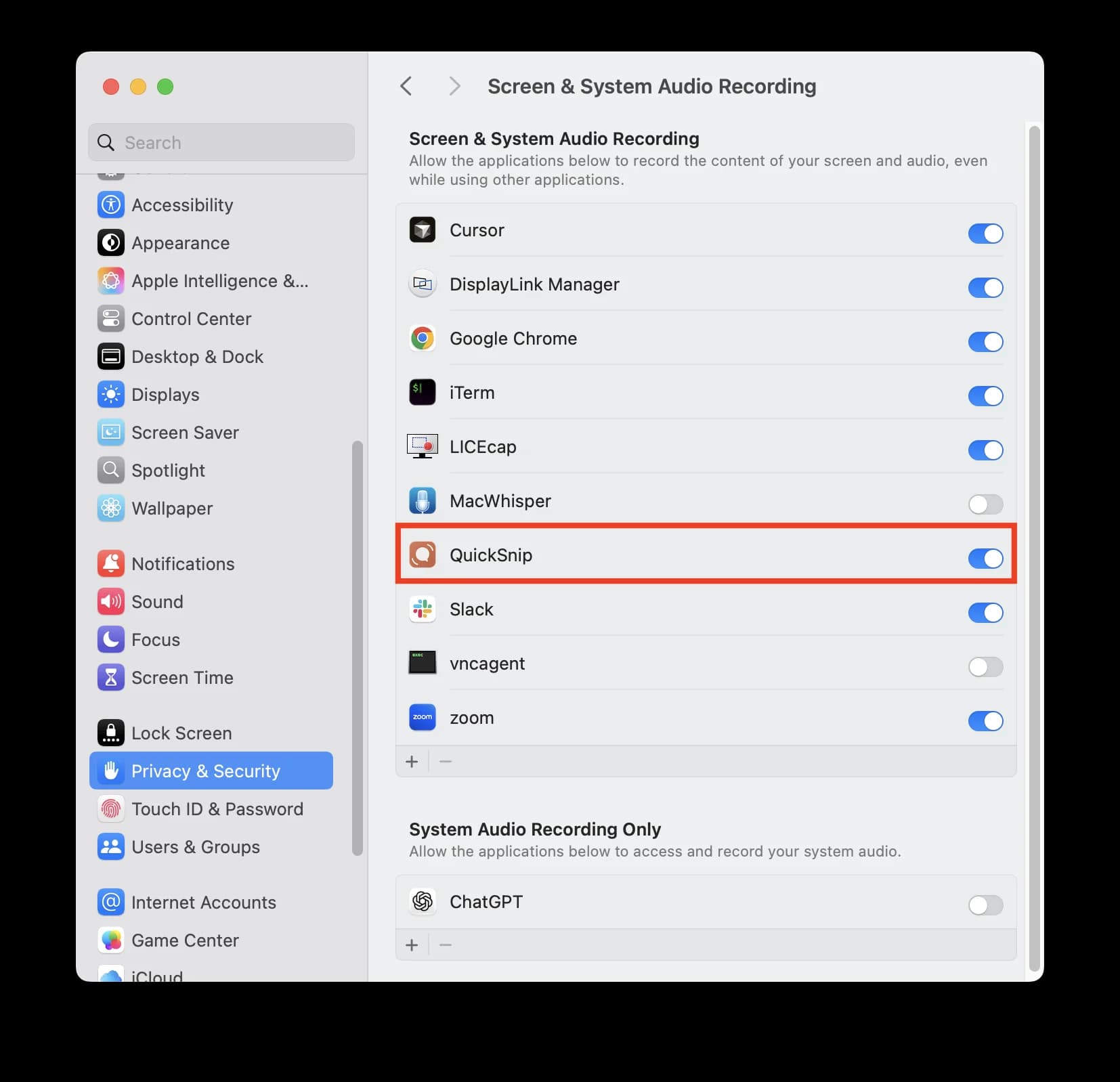
- Open System Settings → Privacy & Security → Screen Recording
- Find QuickSnip in the list
- Toggle it on
- If prompted, click Quit & Reopen to restart QuickSnip
Warning
After toggling Screen Recording permission, you must quit and relaunch QuickSnip for the change to take effect. macOS enforces this at the system level.
QuickSnip Not Listed?
If QuickSnip doesn't appear in the Screen Recording list:
- Launch QuickSnip and try to start a recording
- macOS should prompt you to grant access
- Click Open System Settings from the prompt
- Toggle QuickSnip on
If it still doesn't appear, try removing and re-adding it:
- Click the − button to remove QuickSnip from the list
- Relaunch QuickSnip
- Try recording again — macOS will re-prompt you
Microphone Permission
Required for recording voiceover or narration.
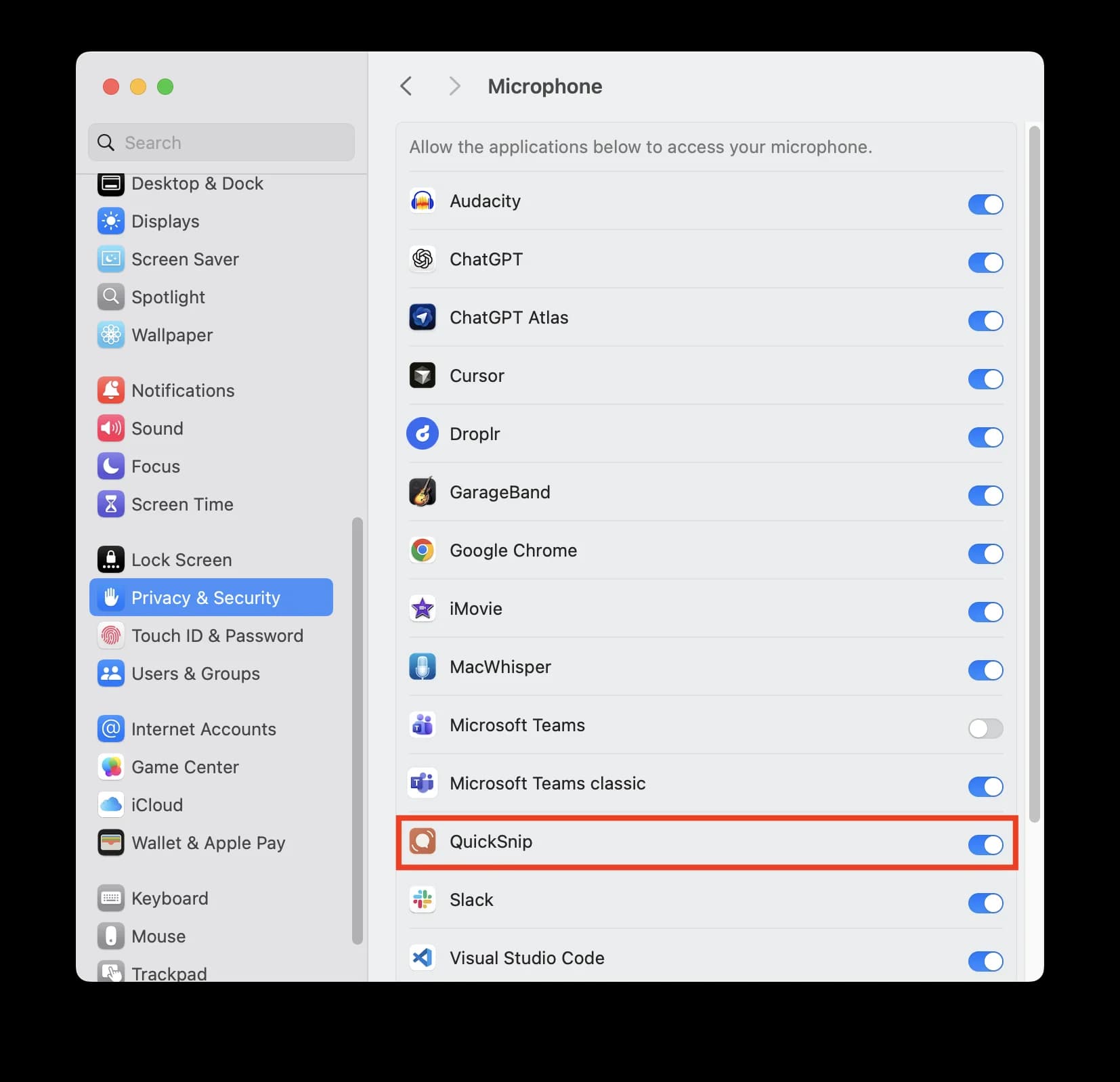
- Open System Settings → Privacy & Security → Microphone
- Find QuickSnip in the list
- Toggle it on
Camera Permission
Only needed if you want a webcam overlay in your recordings.
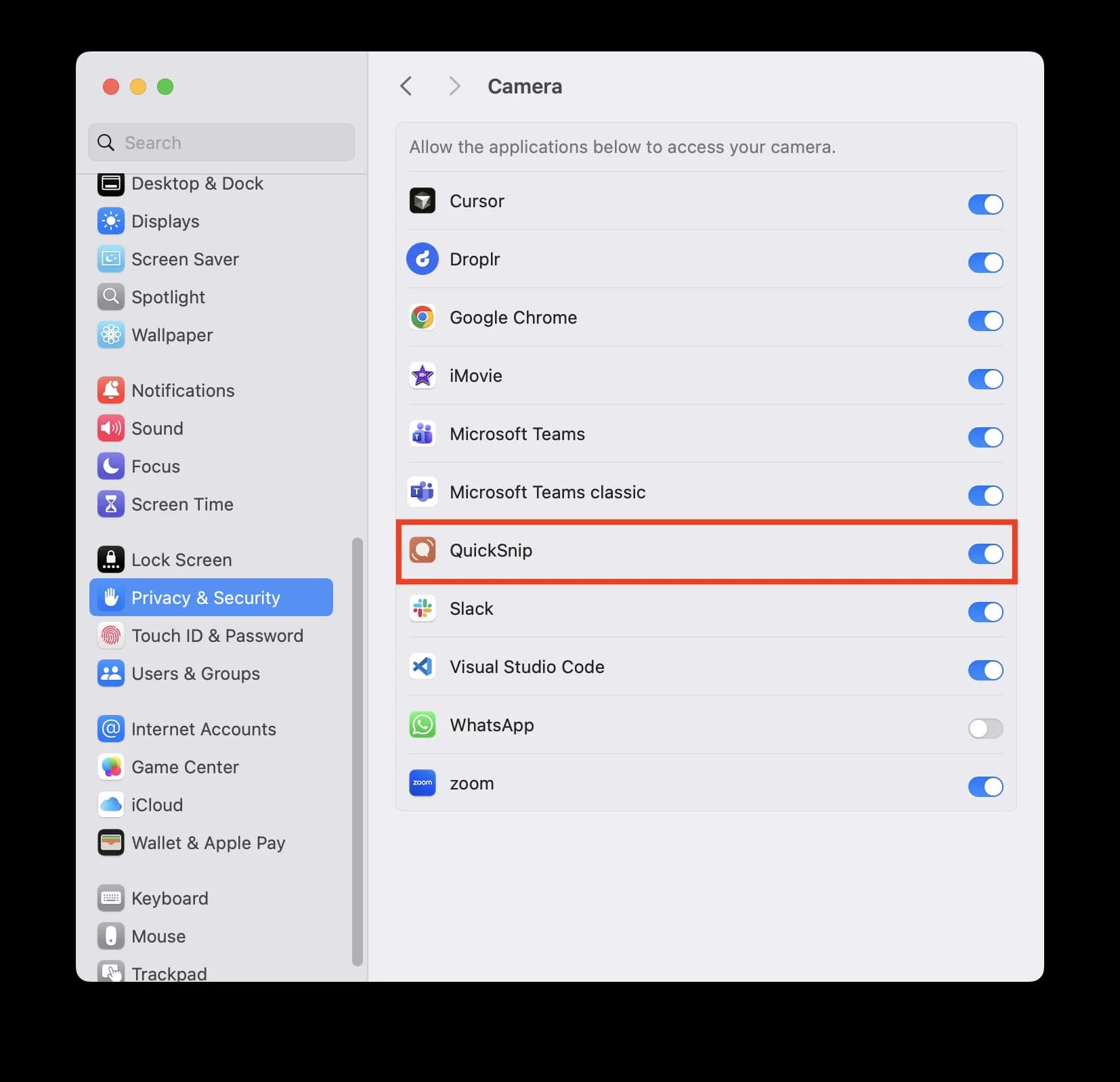
- Open System Settings → Privacy & Security → Camera
- Find QuickSnip in the list
- Toggle it on
Permission Errors in QuickSnip
If QuickSnip detects missing permissions, it will show you exactly what's needed. The setup screen guides you through granting each permission step by step.
Quick Fix Checklist
If recording isn't working, run through this checklist:
- Screen Recording is toggled on in System Settings
- You quit and relaunched QuickSnip after changing permissions
- Microphone is toggled on (if you need audio)
- QuickSnip is the latest version — check the download page
Tip
On macOS Ventura and later, System Settings sometimes requires you to unlock the privacy pane before toggling permissions. Click the lock icon at the bottom-left if toggles appear grayed out.
Still Not Working?
If you've verified all permissions and recording still doesn't work:
- Try restarting your Mac
- Check for macOS updates
- Contact our support team with your macOS version and a description of the issue
What's Next
- Installation & Setup — Full installation guide
- Audio Settings — Configure microphone and system audio
- Your First Recording — Record your first snip
Can't Find What You Need?
Reach out to our support team and we'll get back to you within 24 hours.