DocsRecording
Recording Modes: Quick vs Studio
2 min read
Two Ways to Record
QuickSnip offers two recording modes, each designed for different workflows:
- Quick Mode — Record and share immediately. Best for quick messages, bug reports, and async updates.
- Studio Mode — Record, then edit before sharing. Best for tutorials, demos, and polished content.
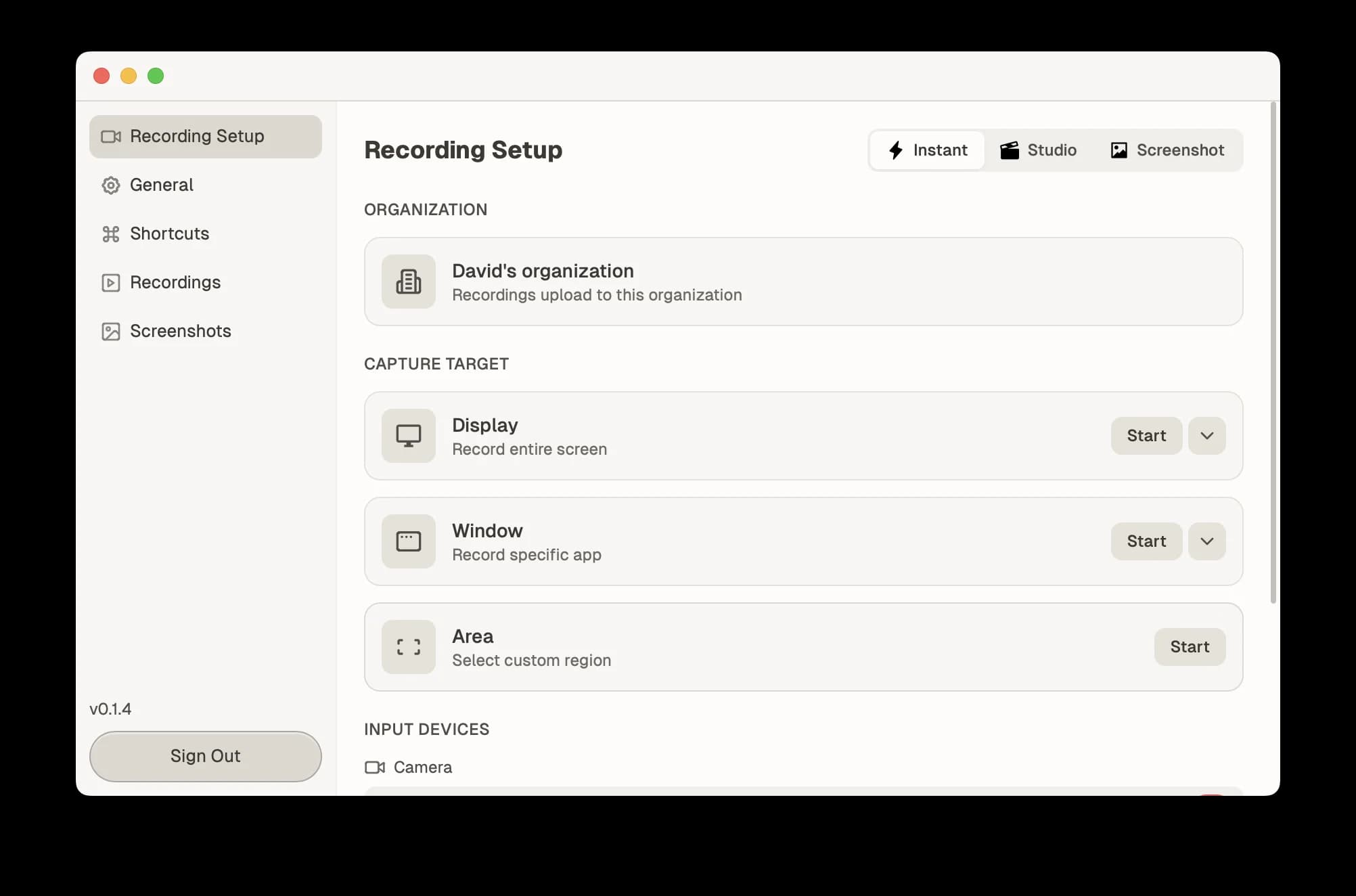
Quick Mode
Quick mode is the fastest path from recording to sharing. When you stop recording:
- Your video uploads automatically
- The share page opens in your browser
- The share link copies to your clipboard
- You can paste and send it immediately
No editing step, no waiting. This is ideal for everyday screen shares.
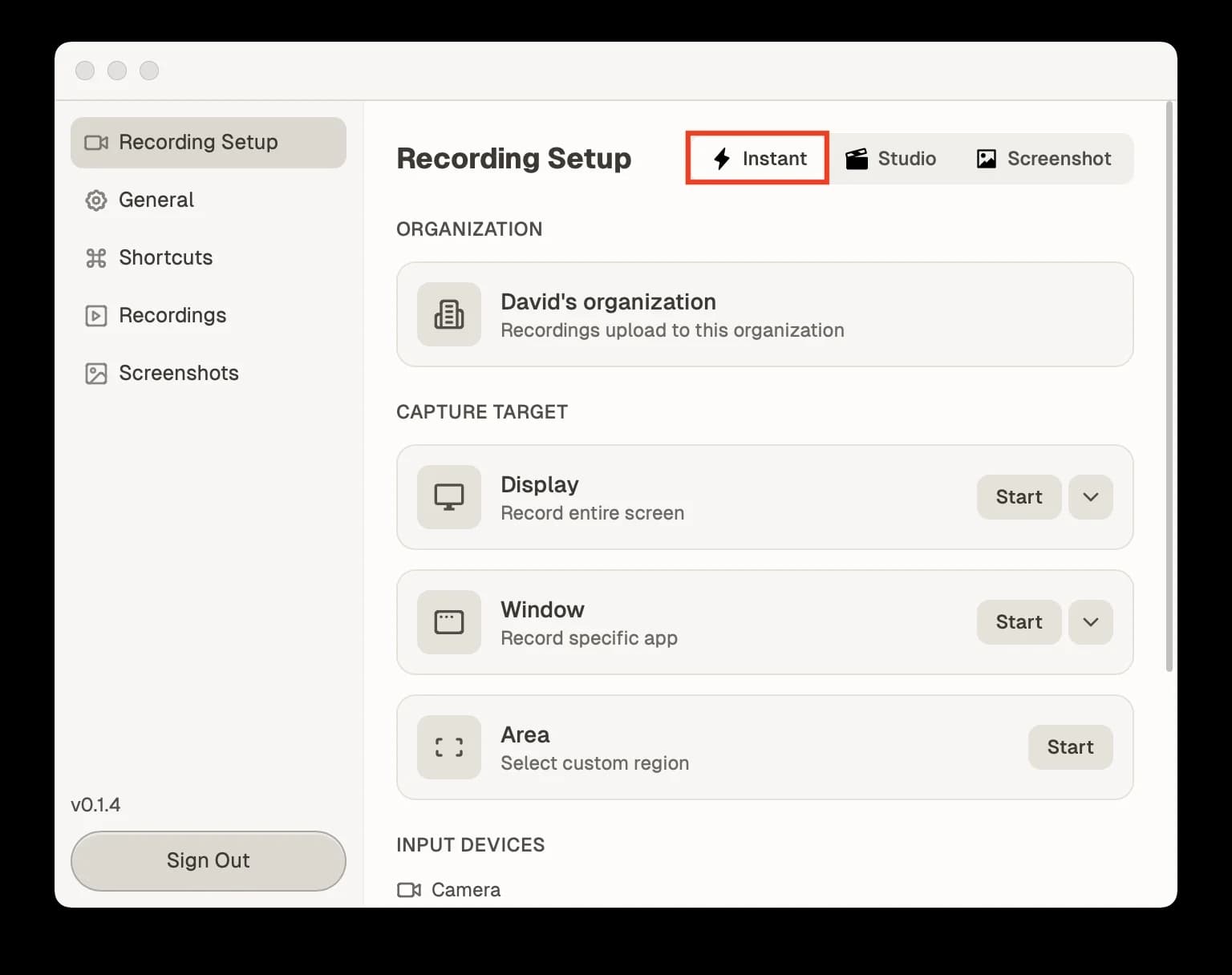
Best for:
- Quick bug reports
- Async standup updates
- Answering a colleague's question
- Sharing a design or feature
Studio Mode
Studio mode adds an editing step between recording and sharing. When you stop recording:
- The studio editor opens with your footage
- You can trim, cut, and adjust your recording
- When ready, export and share
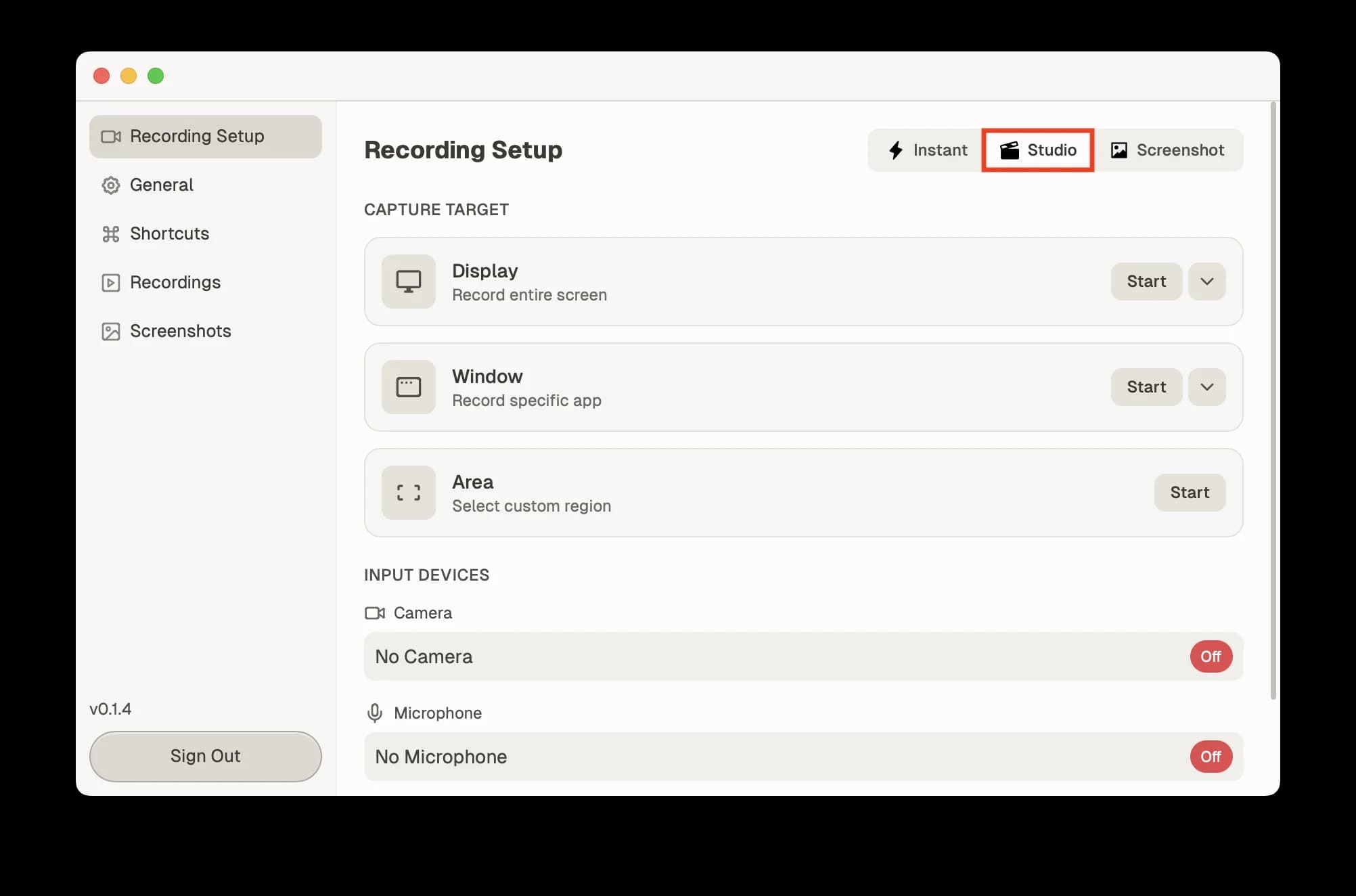
The studio editor gives you tools to:
- Trim the start and end of your recording
- Add AI captions with customizable styles
- Adjust background and padding
- Export in your preferred quality
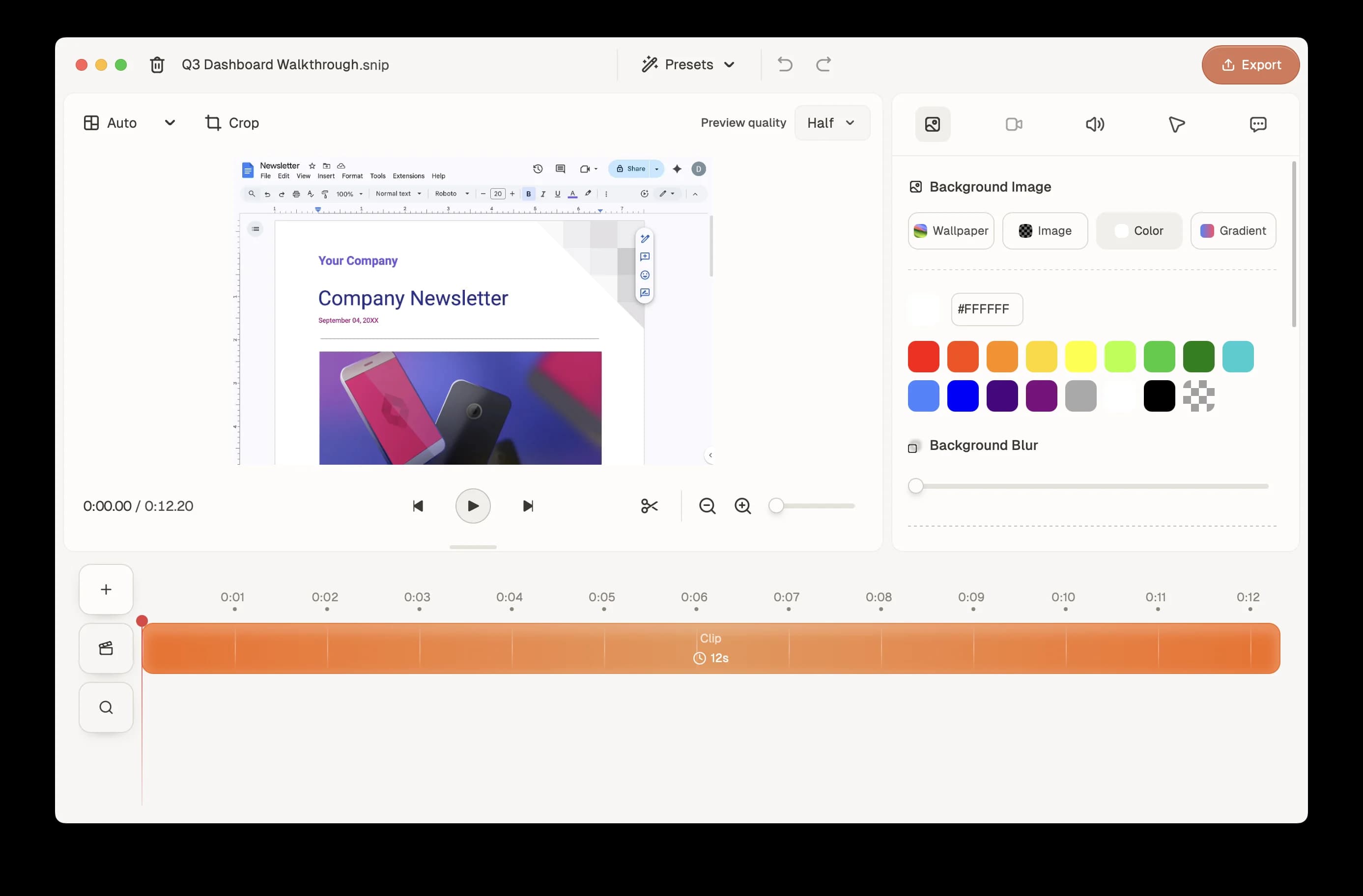
Best for:
- Product demos and walkthroughs
- Tutorial videos
- Content that needs polish before sharing
- Recordings with sensitive content to trim out
Switching Between Modes
You can switch modes at any time from the recording panel. Your preference is saved between sessions.
Tip
Not sure which mode to use? Start with Quick mode. You can always re-record in Studio mode if you need editing tools.
What's Next
- Audio Settings — Configure microphone and system audio
- AI Captions — Add captions in Studio mode
- Your First Recording — Quick start guide
Can't Find What You Need?
Reach out to our support team and we'll get back to you within 24 hours.